How to Sync Across Devices Using MicroTrack Effortlessly
You're halfway through a microdosing log when the moment disappears. You record the dose on your phone before leaving home, then open your laptop later to add mood, energy, sleep, or a note about what really changed. The entry should feel continuous, but the devices disagree, the reflection is missing, or an offline draft silently replaces the detail you entered earlier.
That's the challenge with sync across devices. A dose and its reflection aren't always created together. They're two related events, often recorded on different screens, at different times, and sometimes without a reliable connection. A useful system has to preserve that sequence without making you think about the infrastructure every time you log.
Table of Contents
- Creating Your Account and Enabling Sync
- Understanding Encryption and Privacy Controls
- Managing Sync Across iOS, Android, and Web
- Resolving Conflicts and Offline Sync Issues
- When to Use Manual Export and Import Fallbacks
- Troubleshooting Common Sync Failures
Creating Your Account and Enabling Sync
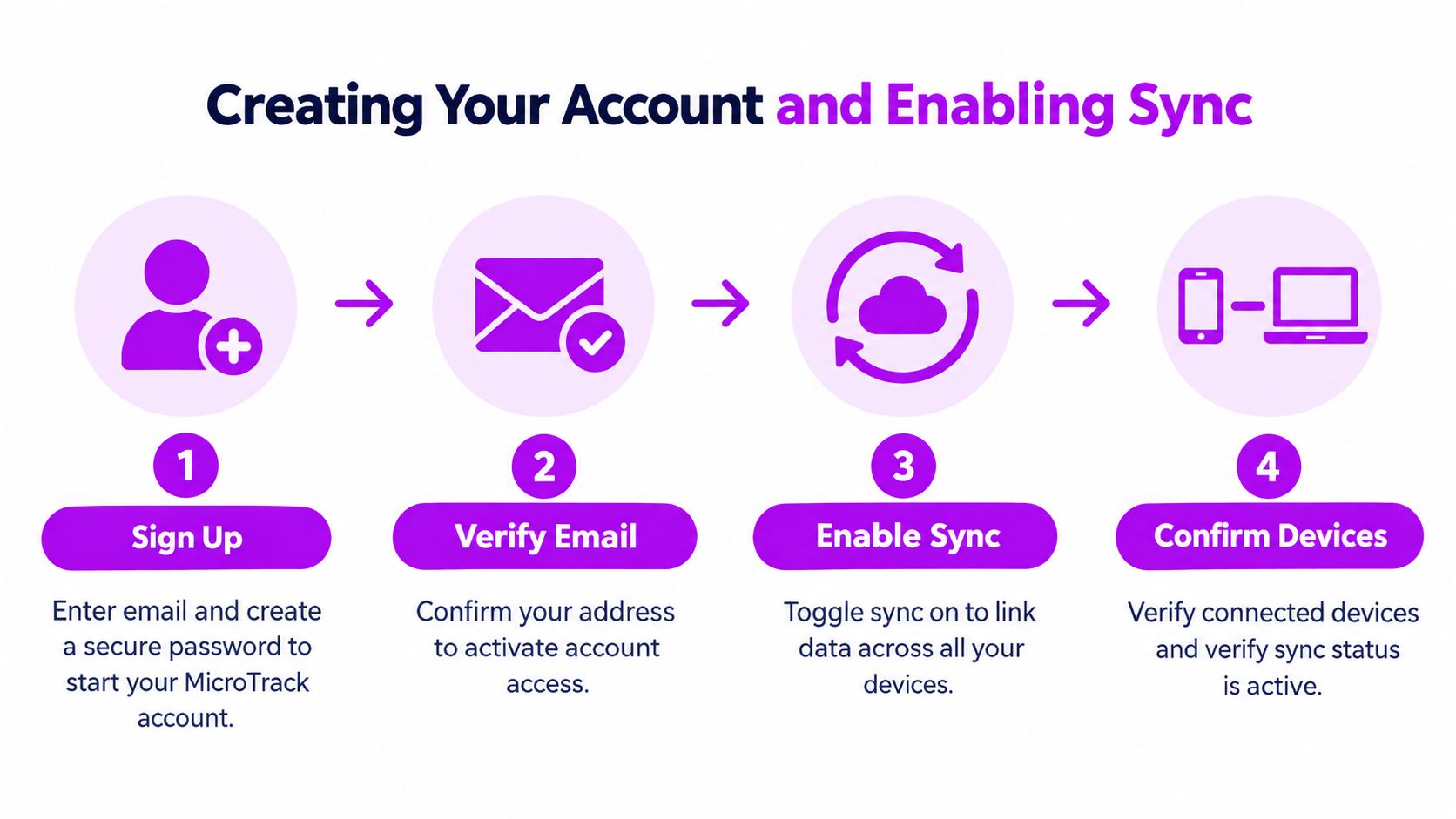
Start with the account, not the device. An account gives each entry a stable identity, so a dose recorded on your phone can later be recognized as the same record when you add a reflection from the web dashboard or another device. Without that shared identity, you're relying on local storage, manual transfer, or a fragile chain of assumptions.
Create your MicroTrack account with an email address and a password you can protect properly. Confirm the email before you begin logging. Verification isn't busywork. It confirms that you can recover access and helps prevent a setup where one device appears ready while the account itself remains incomplete.
Turn on sync and test the bridge
After signing in, open the account or settings area and look for the sync control. Turn it on, then check the connected-device or sync-status view. You want a clear indication that sync is active, not merely that you're signed in.
Use this test before entering a full session:
- Create a small test entry: Save a simple note or draft dose record on your first device.
- Wait for the status to settle: If the app shows a pending, syncing, or completed state, wait until it indicates completion.
- Open a second client: Sign in on another phone, laptop, or browser.
- Confirm the record appears: Check that the original entry is visible before adding anything substantial.
- Add a short reflection: Update the same record from the second device, then return to the first and verify that the reflection arrives.
That final step matters more than seeing a login screen. Dual-phase logging depends on updates to an existing entry, not just the initial creation. If the dose appears but the later reflection doesn't, you've found a sync problem before it affects meaningful history.
Practical rule: Never assume sync works because your account is connected. Confirm both creation and later editing across two devices.
Cross-device sync has grown beyond a convenience feature. One market report estimated the global cross-device sync platform market at $6,953.3 million in 2024, rising to $7,947.6 million in 2025 and projected to reach about $26,463.9 million by 2034, implying a 14.3% CAGR over the forecast period, according to market coverage of the cross-device sync platform category. That scale reflects a simple user expectation: the same account should preserve the same state wherever you sign in.
Understanding Encryption and Privacy Controls
Microdosing logs can contain sensitive information about mood, mental health, sleep, medication context, routines, and personal responses. Convenience shouldn't come at the cost of losing control over who can read those entries. The meaningful question isn't whether an app says it's secure. It's where encryption happens, who holds the keys, and what data the provider can access.
Understand zero-knowledge protection
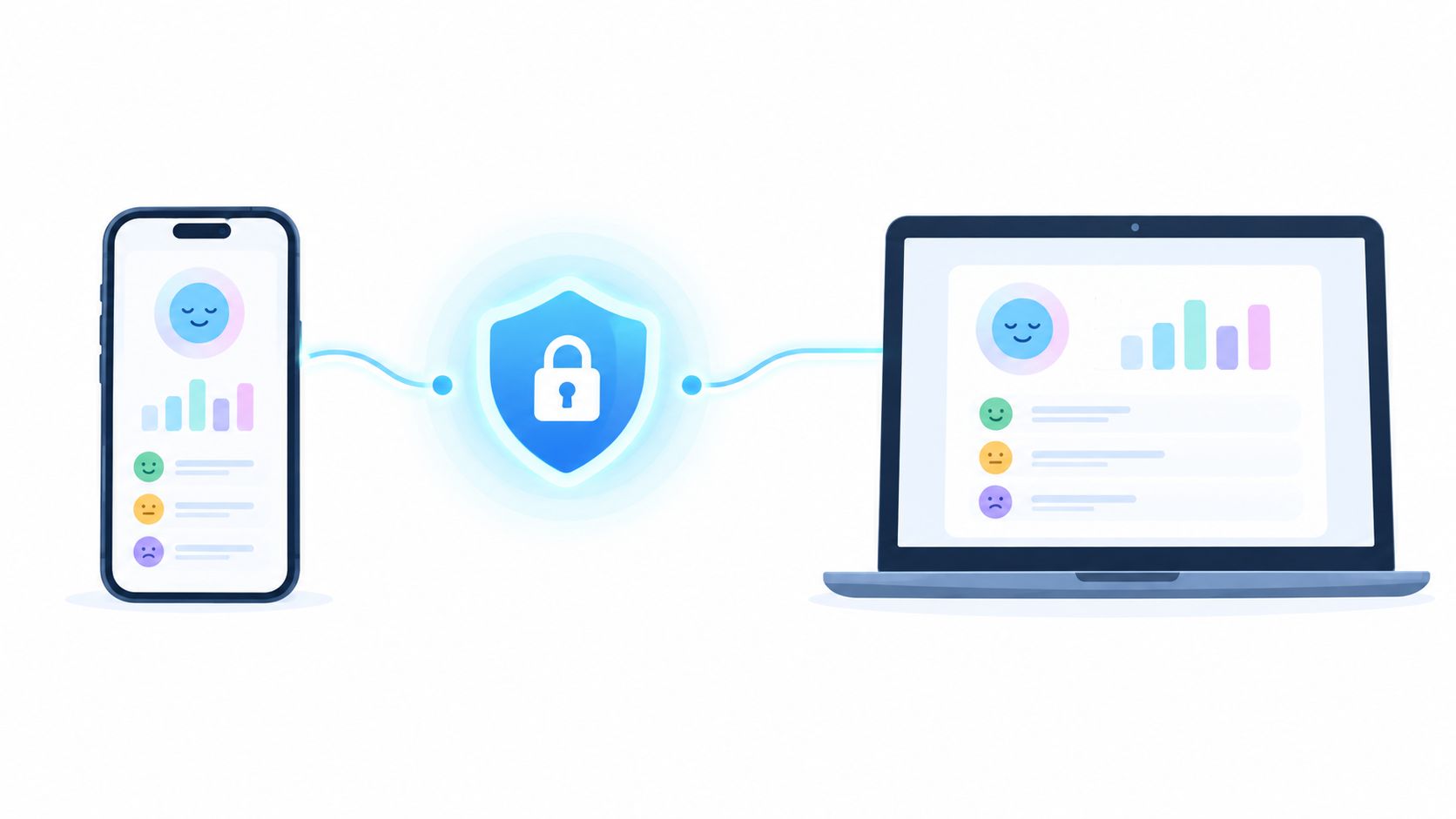
A stronger design uses end-to-end encryption with zero-knowledge architecture. In that model, the provider can't read your data because the decryption keys stay on your devices. The server can coordinate synchronization, but it doesn't hold the ability to turn your encrypted records back into readable journal entries.
One documented example describes data being encrypted locally with an AES-256 symmetric key derived from the account password before upload. Only the user can decrypt the information locally with that password, as explained in this technical description of encrypted synchronization. The important distinction is local encryption before transmission, rather than sending readable content to a server and encrypting it only after arrival.
For a two-phase entry, this protection should apply to both parts of the record. The initial dose details and the later reflection may be created at different times, but neither should become an exposed plaintext payload just because one update happens later.
Read the practical difference between protected transport and broader data protection in MicroTrack's explanation of encryption in transit. Encryption in transit protects information while it moves between your device and the service. A zero-knowledge model addresses a deeper concern, whether the service can read stored content at all.
Balance privacy with recovery
Zero-knowledge protection creates a real trade-off. If your password is the basis for local decryption and the provider can't decrypt your entries, account recovery may be less forgiving. Use a strong, unique password and store it in a reputable password manager. Don't treat a forgotten password as a minor inconvenience when it may also control access to your private history.
Check the privacy controls before you start a long-term practice:
- Review connected devices: Remove devices you no longer use or don't recognize.
- Limit synchronized content: Sync only the categories you need on each device.
- Protect the account: Enable two-factor authentication where it's available.
- Plan for sensitive contexts: Avoid leaving an open browser session unattended on a shared computer.
- Understand deletion: Check how deleting an entry, disconnecting a device, and deleting an account differ.
Privacy-preserving synchronization, encrypted storage, and zero-knowledge designs are identified as major 2025–2026 trends in recent neutral market coverage. For a microdosing journal, those aren't abstract product features. They determine whether your reflections remain personal while still being available when you switch screens.
Managing Sync Across iOS, Android, and Web
The same account doesn't guarantee identical background behavior on every platform. iOS may delay background activity, Android may restrict battery-heavy processes, and a browser can display an older cached view even after the server has accepted a change. Treat each client as a different doorway into the same data, not as interchangeable storage.
On iPhone or iPad, allow notifications and background app activity if the app provides those controls. Don't force-quit the app after every entry, because repeatedly closing it can prevent normal background work. When you record a dose before going offline, leave the app open long enough for the save state to complete whenever connectivity is available.
Android needs a different check. Battery optimization can suspend background activity, especially for apps you rarely open. Find the app's battery settings and allow the level of background use required for reliable synchronization. If your phone has a manufacturer-specific “sleeping apps” or “deep optimization” feature, make sure the tracker isn't listed there.
Use the web client deliberately
The web dashboard is useful for reflections because a larger keyboard makes it easier to write context without rushing. It's also the client most likely to mislead you visually if an old browser tab is still open.
Use this sequence after editing on the web:
- Refresh before editing: Start from the current server view rather than an abandoned tab.
- Save the reflection: Wait for the confirmation or completed-sync state.
- Refresh after saving: Confirm that the saved text remains visible.
- Check another device: Open the same entry on your phone to verify the update propagated.
- Close stale tabs: Don't keep several old copies of the same record open while making edits.
Browser sync has helped normalize the expectation that personal data follows the account. Google's Chrome documentation says that, when sync is enabled, users can access bookmarks, history, open tabs, passwords, payment information, addresses, and other settings on devices signed into the same Google Account, as described in Chrome's sync documentation. That expectation is useful, but a journal still needs a deliberate confirmation step because a reflection is an edit to a meaningful record, not merely a browser preference.
A reliable habit beats a clever setting. Record the dose where it happens, then confirm the reflection after the connection returns.
Resolving Conflicts and Offline Sync Issues
You record dose details on your phone without a signal, then open your laptop and edit an older copy before the phone reconnects. Both entries contain valid work. The conflict is harder because a microdosing journal has two phases: the dose record should remain stable, while the reflection may be added or revised later.
Treat each saved state as a version rather than replacing the previous record. A version-aware system can compare the order and content of changes, so a later reflection does not overwrite an earlier dose entry just because it uploaded last.
What a sound conflict process looks like
A reliable implementation combines versioning, checksums, and atomic updates. Versioning identifies the sequence of edits. Checksums help detect unexpected changes. Atomic updates prevent a partial write from appearing as a complete journal entry.
Use this sequence when connectivity is unreliable:
- Save locally first: Keep the dose or reflection on the device while you are offline.
- Queue the change: Mark it as pending instead of showing it as synchronized.
- Reconcile versions: After reconnection, compare the offline entry with the current remote record.
- Preserve meaningful edits: Keep the original dose details even when a later reflection arrives from another device.
- Show a conflict clearly: Identify the affected record and provide a review option when automatic merging is unsafe.
If a conflict notification appears, stop editing on both devices. Compare the dose phase with the reflection phase, then retain the most complete version. Copy unique text into a temporary secure note only when necessary, and save one deliberate resolution.
AI-assisted merging can reduce routine friction, but it should not make decisions automatically on a meaningful journal entry. Review the merged record manually. Confirm that the dose timestamp and reflection text both survived before dismissing the conflict dialog.
The recommended recovery model uses rollback to a known-good state, regular integrity checks, and clear restoration paths, according to guidance on cloud synchronization across devices. This protects reflection work that took time to write. A sync failure should produce a reviewable recovery event, not remove the entry without notice.
Offline-first behavior should let you lose connectivity, continue logging, reconnect later, and see exactly what changed. Systems increasingly address continuity, local caching, and conflict handling, as described in coverage of emerging sync requirements. Test the workflow with a dose saved offline and a reflection added from another device. The result should preserve both phases or explain precisely why manual review is required.
When to Use Manual Export and Import Fallbacks
Automatic cloud sync works well for daily capture, but dual-phase logging creates a specific failure risk. You may record a dose immediately, then add the reflection hours later from another device. A manual export gives you a controlled checkpoint when that second phase matters, especially before changing apps, reviewing entries offline, or pausing cloud use because of privacy or organizational requirements.
CSV is slower than live synchronization, yet its contents are easier to inspect and move between tools. It may not retain app-specific relationships, interface state, or conflict history. Use it as a portable snapshot of the journal, not as a complete substitute for the active record.
Choose the method that fits the job
| Situation | Automatic sync | Manual CSV export and import |
|---|---|---|
| Recording a dose in the moment | Fast and practical | Too slow for routine capture |
| Adding a reflection later | Convenient across devices | Useful from a local archive |
| Moving to another system | May not provide the needed format | Better suited to portability |
| Sensitive offline review | Depends on the sync setup | Keeps a local copy that still needs protection |
| Recovery from a sync problem | Helpful when version history exists | Provides a separate snapshot |
| Long-term archival | Convenient but service-dependent | Gives you a file to store and manage |
Before relying on an export, open the CSV and check a recent entry. Confirm that both the dose columns and the reflection column contain the expected values. Some tools may export the first phase without preserving the later reflection, which makes a file appear complete when it is not.
Export before a major workflow change. Store the file with a clear filename in encrypted storage, and avoid leaving health-related data in an unprotected downloads folder or unrelated cloud drive.
Use MicroTrack's CSV data export guidance when you need a portable journal copy. MicroTrack supports cloud synchronization for signed-in users and provides manual sync controls. CSV export and import provide a separate file-based workflow for people who want direct control over their records.
Privacy and data residency can affect the choice. If a workplace or jurisdiction requires tighter control over where personal data is stored or processed, confirm the service's storage and compliance arrangements before enabling sync. For personal use, a practical compromise is live synchronization for dose capture and later reflection, paired with periodic local exports stored securely. The export should preserve both phases before you treat it as a backup.
Troubleshooting Common Sync Failures
When an entry doesn't appear, start with the smallest possible diagnosis. Confirm that both devices use the same account, check the sync status, and use the app's manual sync control if one is available. Then refresh the receiving device instead of repeatedly submitting the same entry.
Duplicates usually come from repeated taps, stale browser tabs, or an interrupted upload that looked like a failure. Compare timestamps and content before deleting anything. Keep the most complete record, especially when one copy contains the reflection and the other contains only the dose phase.
A quick recovery sequence
- Check connectivity: Switch between Wi-Fi and mobile data if appropriate, then retry once.
- Refresh authentication: Sign out and back in only after confirming you know the password and any required verification method.
- Force a fresh view: Refresh the web page or fully reopen the mobile app.
- Inspect device permissions: Recheck background activity, battery restrictions, and notification access.
- Clear stale local data: Clear the browser cache or app cache only after confirming unsynced drafts aren't stored there.
- Export before deleting: If the record is visible anywhere, preserve a copy using MicroTrack's data export instructions.
- Escalate with context: If the issue remains, note the device, platform, account state, entry phase, and last successful sync.
Don't uninstall an app as your first move. Removal can erase local offline data that hasn't reached the server. Preserve what you can, verify the cloud copy, and only then reset the client.
MicroTrack keeps dose details and later reflections available across signed-in devices, with structured two-phase entries, searchable history, and CSV export when you need a portable backup. Start a calmer, privacy-focused logging workflow by visiting MicroTrack, enabling sync, and testing one dose-plus-reflection entry before you rely on it for your full practice.