Export CSV File to Excel: Import Steps That Keep Your Data
The most popular advice is also the riskiest. Double-click a CSV, let Excel open it, then save it as a workbook. That workflow gives Excel permission to guess your delimiter, encoding, dates, and column types without showing you any of those choices.
If you're trying to export CSV file to Excel for analysis, opening isn't the test. Matching is. Treat every import as a data-integrity check. Confirm the raw file first, set types deliberately in the preview, and prove the loaded sheet matches the source before you build a chart or filter a single column.
Table of Contents
- Prepare the CSV Before You Open It
- Regional Settings for Delimiters, Encoding and Dates
- How to Import a CSV Into Excel Step by Step
- Fix Leading Zeros, Dates and Large Numbers
- Validate Row Counts and Sample Values
- Save the Validated Workbook as XLSX
Prepare the CSV Before You Open It
A CSV is plain text, and Excel invents types the moment it opens one. Each line is one record. Fields sit between a delimiter. Nothing in the file marks a value as a date, a code, or a number. Before any import, remove the reasons Excel guesses wrong.
In October 2005, the Internet Engineering Task Force RFC 4180 formally documented the commonly used CSV format and registered the MIME type "text/csv". It describes records as separate lines with fields separated by commas, recommends the same number of fields in each row, and says fields containing a comma, line break, or double quote should be enclosed in double quotation marks. CSV stores text only. It does not keep formulas, formatting, charts, extra worksheets, or cell types. Those appear only after Excel loads the file and assigns types on its own.
Run Four Checks on the Raw File
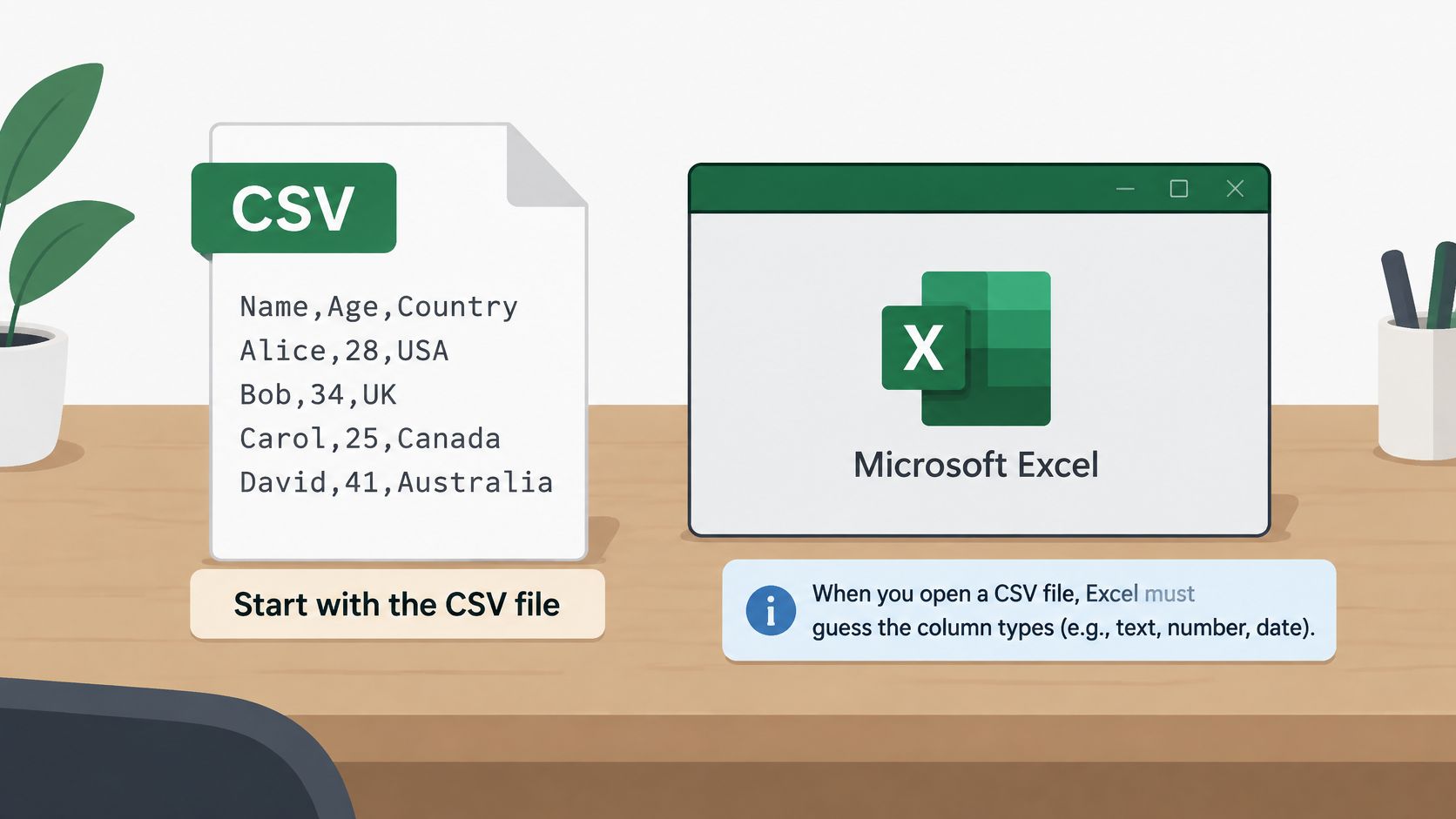
Open the file in a plain text editor first. You see the delimiter, the quotes, and the line breaks before Excel interprets them.
- Header row: Confirm the first line names every column, with no duplicates or blanks. For how an export is laid out, read what a CSV export contains.
- Field count: Confirm every record has the same number of fields. One extra comma shifts every later value into the wrong column, and Excel will not warn you.
- Quoting: Confirm text with commas, line breaks, or quotes is wrapped in double quotes, with embedded quotes doubled. That keeps "felt calm, focused" in one cell.
- Encoding: Confirm the file is UTF-8. That keeps accents, non-Latin text, and symbols intact.
This visual shows why the raw file deserves attention before Excel interprets it.
Then protect the source. Keep the original export untouched and work only on a copy. If an import fails, repeat it from identical data instead of trying to undo values Excel already changed.
Practical rule: If you can't describe the delimiter, encoding, and header row from the raw text, you're not ready to import.
Regional Settings for Delimiters, Encoding and Dates
Excel will turn 3,5 into text and 04/05/2026 into the wrong day, then stay quiet about it. CSV stores characters only. The delimiter, the encoding, and the date order come from the machine that wrote the file and from the locale Excel applies when it reads that file. A file that splits into columns on a US PC can collapse into one column on a European one, or the other way around.
Semicolon-delimited files are common where the comma is the decimal mark. Decimal commas and day-month dates follow those same locales. Garbled accents are usually the wrong encoding, not a damaged export. Set delimiter, File Origin, and column locale in the preview. A later edit of the sheet cannot tell you what Excel already rewrote.
Use this lookup before you load.
| Setting | Typical source | Where to set it |
|---|---|---|
| Comma delimiter | US, UK and most English-language tools | Delimiter list in the import preview |
| Semicolon delimiter | Many European locales where the comma is the decimal separator | Delimiter list in the import preview |
| Tab delimiter | Some database and reporting exports | Delimiter list, choose Tab |
| UTF-8 encoding | Accents, non-Latin scripts and emoji | File Origin list in the import preview |
| Windows-1252 encoding | Older Western European exports | File Origin list in the import preview |
| Day-month-year order | Dates such as 04/05/2026 in most of Europe and Asia | Column type set with a locale in Transform Data |
| Month-day-year order | Dates such as 04/05/2026 in the United States | Column type set with a locale in Transform Data |
| Decimal comma | Many European locales where the comma separates decimals | Locale setting on the numeric column in Transform Data |
The Two Cases You'll Miss Most Easily
A semicolon file often pairs with a decimal comma. 3,5 is three and a half in that locale and a non-number in an English one. Leave the characters alone. Set the locale on that numeric column in Transform Data so the comma is the decimal separator.
Day-month and month-day strings look identical until a day passes 12. I check an unambiguous value such as 25/04 in the preview before I accept the column. If Excel swaps the parts or rejects the cell, the locale is wrong for the whole column, not that one row.
When the source locale is unknown, match the preview to a value you already recognise: a name with an accent, or a dose date you logged. Encoding choices for a clean file are covered in how to export CSV in UTF-8. A UTF-8 file with a byte-order mark is usually detected on open. A file without that mark often needs UTF-8 chosen under File Origin, or accents become replacement characters.
Set the delimiter, File Origin, and column locale in the import dialog rather than repairing cells afterward. A hand edit leaves no record of the silent change, and a second pass often adds new errors. Write down the delimiter, encoding, and locale you used. The next import on another machine should use the same three settings, or the sheet will not match the source.
How to Import a CSV Into Excel Step by Step
Don't double-click the CSV. That opens it with hidden guesses and no chance to intervene. Use the import preview, where you can see column boundaries and types before anything reaches the sheet.
This flow covers the opening moves before you make detailed type choices.
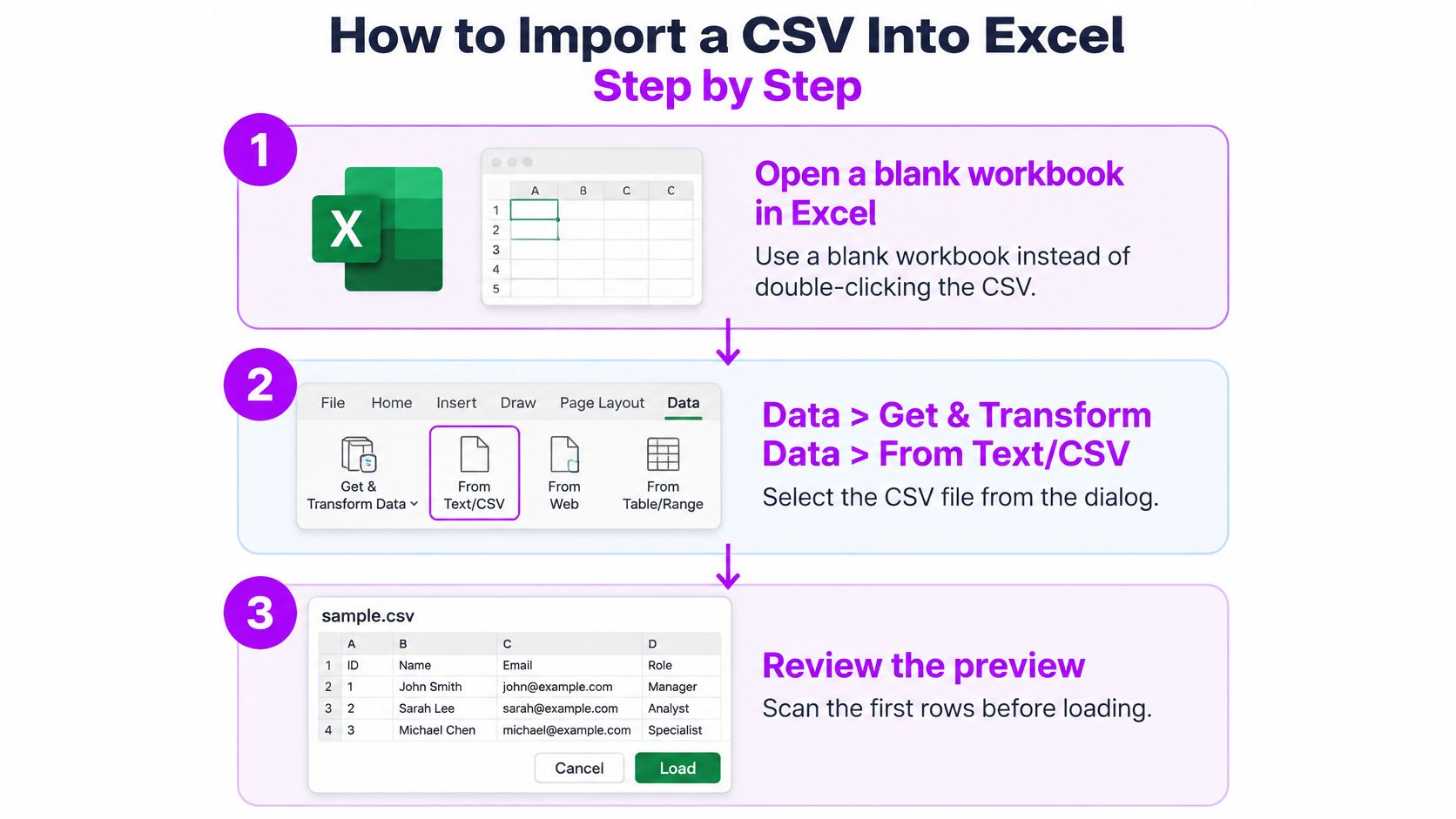
Microsoft recommends choosing Data > From Text/CSV, selecting the file, and choosing the appropriate character under Delimiter, as set out in Microsoft's guide to importing text and CSV files. If the wrong delimiter is selected, Excel can place the entire row in one column or split values incorrectly.
The Import Sequence
- Open a blank workbook. Starting empty forces you through the import dialog instead of Excel's direct-open guesses. It also keeps this dataset separate from earlier analysis.
- Go to Data > Get & Transform Data > From Text/CSV. Select the copy of your CSV, not the untouched original. This route opens the preview rather than loading immediately.
- Scan the first rows. Confirm row 1 contains headers, not data, and that no title rows or blank lines sit above them. If the preview shows generic column names, fix the header detection now.
- Set the delimiter. Choose Comma, Semicolon, or Tab and watch the preview redraw. You're done when every field sits in its own column and notes don't spill into score columns.
- Set File Origin. Choose UTF-8 if accents, names, or non-English notes look garbled. Don't load and hope sorting will fix encoding. It won't.
- Review detected column types. Set identifiers, postal codes, protocol labels, and score fields deliberately. Use Text where the value is a label, and date or numeric types only where you'll filter or calculate.
- Choose Transform Data or Load. Pick Transform Data if you need Power Query to change a type with a specific locale, rename headers, or remove blank rows first. Pick Load only when the preview already looks correct.
- Load to a new worksheet. A new sheet gives you a clean place to count rows and compare values. Loading over existing data makes validation harder to trust.
The video below walks through the same preview-first approach, so you can compare the dialog options with your version.
What Correct Looks Like
Headers sit in row 1. Each source field occupies one column. Dates align as dates, codes keep their leading zeros, and long notes stay inside their cells. The row count should also match the source before you add filters or formulas.
Get & Transform Data appears in current Microsoft 365 and recent Excel versions. If your Data tab doesn't have it, use the legacy text import wizard and check delimiter and encoding with extra care, because it offers fewer preview options. On Excel for Mac, menu names differ, but the same delimiter, encoding, and column-type choices still decide whether the import works.
I'd choose Transform Data whenever there's any doubt. It's slower by a minute and faster than rebuilding a corrupted sheet.
Fix Leading Zeros, Dates and Large Numbers
A participant code 0047 becomes 47. That's the most common failure, and it happens unnoticed. The record still looks tidy, but it no longer matches the original entry, a lookup fails, and your analysis loses that person.
Excel's automatic conversion can remove leading zeros, display sufficiently large integers in scientific notation, and convert alphanumeric strings into dates, which Microsoft documents in its guidance on keeping leading zeros and large numbers. That behaviour can corrupt identifiers, timestamps, protocol labels, and journal fields. CSV carries no universal schema or data-type metadata, so a clean-looking import doesn't prove the values mean what they meant in the source.
Set Types by Purpose, Not Appearance
Set identifiers, codes, and categorical fields to Text in the preview. Participant codes, dose identifiers, postal codes, and protocol labels don't need arithmetic, so they shouldn't be numbers. Assign date/time types only when you'll sort chronologically or filter by period, and numeric types only when you'll calculate with mood scores or dose amounts.
Power Query helps because it shows each column's detected type before loading. Change the type there, ideally with an explicit locale for dates and decimals. Fix delimiter and quoting problems in the preview or in the export itself, not by editing individual cells.
A long number shown as 1.23E+15 has already lost digits. Reformatting the cell won't restore them. Re-import from the original CSV with that column set to Text.
Use the symptom first, then apply one targeted fix.
| Symptom | Likely cause | Fix |
|---|---|---|
| Leading zeros removed | Column detected as number | Re-import with the column set to Text |
| Text string turned into a date | Excel parses the string using the locale | Set the column to Text, or convert with an explicit locale |
| Day and month reversed | Day-month and month-day locales differ | Re-import with the correct locale |
| Note splits into two cells | Field containing a comma was not quoted | Fix quoting in the export and re-export |
Don't patch a damaged column cell by cell. You'll miss rows, create inconsistent formats, and lose any record of what changed. Re-importing with the correct type fixes the whole column the same way, and it keeps the process repeatable next month.
Spot-check the risky values before you move on. Look at fields with commas, quotation marks, embedded line breaks, Unicode characters, empty values, and long numbers. If those survive unchanged, ordinary values usually have too. If they haven't, the type settings need another pass.
Validate Row Counts and Sample Values
A workbook that opens without an error proves nothing. Excel's guesses often look plausible, especially with dates and scores, so you need checks that compare the sheet against the untouched source. Run them on every import, not only when something looks wrong.
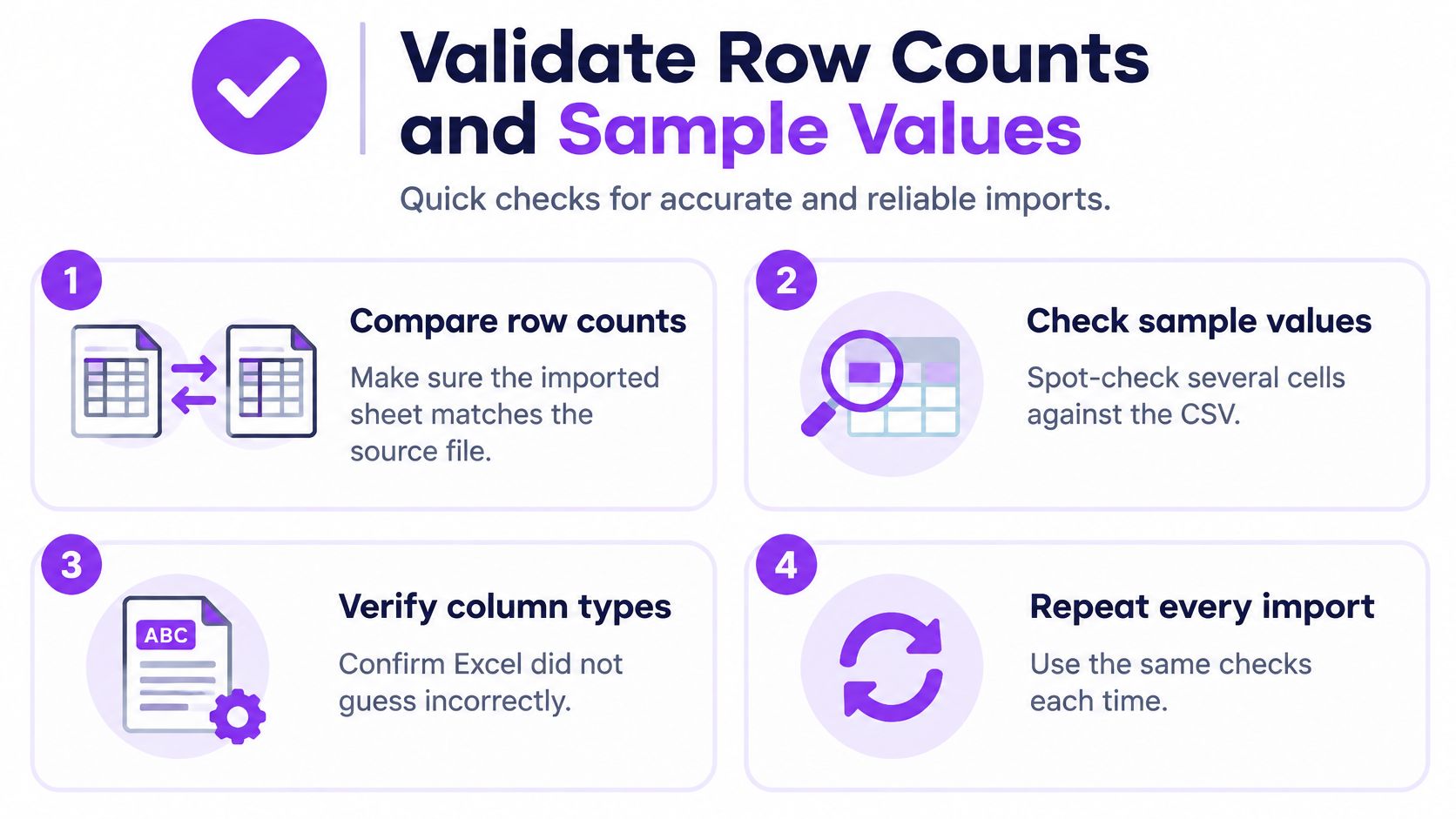
This checklist graphic summarises the habit to build before analysis starts.
For journal data, this breakdown of RFC 4180 and Excel quirks notes Microsoft specifically documents that Excel removes leading zeros and converts large numbers to scientific notation during import. It also warns that correcting formatting after Excel has parsed a value may not restore the original data, because long numeric values can lose precision permanently. That's why a mismatch means re-importing, not editing.
Compare Structure Before Values
Count data rows in the source, excluding the header, then count them in Excel. Confirm the column count and header names in order. A structure mismatch will distort every later check, so resolve it first.
| Check | What a mismatch means |
|---|---|
| Data row count | Missing or extra rows; look for blank lines or unquoted line breaks |
| Column count and headers | A shifted delimiter or an unquoted comma |
| Commas, quotes and line breaks | Split or merged cells, usually a quoting problem |
| Accents and non-Latin text | Wrong encoding; re-import with UTF-8 |
| Empty fields | Blanks turned into zeros or shifted values |
| Long numbers | Precision lost; re-import with the column as Text |
| First and last dates | Day-month reversal or locale-based date parsing |
| Numeric column total | Values read as text or altered during import |
Then sample deliberately. Pick values containing commas, quotes, line breaks, accents, empty fields, and long numbers, and compare each one with the raw CSV. Compare the first and last dates. Total one numeric column, such as dose amounts or mood scores, in both places.
In a health or mood journal, one shifted score can bend a trend line and suggest a protocol worked when it didn't. Visual tidiness matters less than historical accuracy. For more on keeping exports usable over time, see our guide to CSV data export.
Save the Validated Workbook as XLSX
Save as .xlsx only after the checks pass, and use a new filename. That format keeps formatting, filters, formulas, and multiple worksheets. A CSV keeps only rows and fields, so saving back over it discards your workbook structure and risks another round of automatic reinterpretation when it's reopened.
Microsoft documents a maximum of 1,048,576 rows and 16,384 columns per worksheet in its Excel specifications and limits. One entry per day for 10 years produces only 3,650 data rows, or roughly 0.35% of the maximum row capacity, so a personal journal won't approach the limit. If a much larger export ever does, split it by year or month rather than cutting records.
Microsoft also identifies .xlsx as the default XML-based format for Excel 2007 and later. Saving to it isn't a filename change. You're moving from plain rows and fields into a structured workbook that can hold your analysis separately from the imported data.
Decide With a Simple Rule
If the row count, headers, dates, totals, and sample values match the source, save and start analysing. Add formulas, charts, and summaries now, preferably on separate sheets so the imported table stays clean.
If any check fails, don't fix cells by hand. Return to the original file and re-import with the corrected delimiter, encoding, locale, or column type. Manual repairs leave no record and can spread a mistake down an entire column.
Users can export all their data as CSV at any time, so a broken MicroTrack import never needs rescuing. Export a fresh file, keep the dated CSV as the permanent backup, and treat the .xlsx as the working copy.
A CSV import is only finished when the row count, column structure, and sample values match the source. Until then, the analysis should wait.
Export your MicroTrack journal as CSV whenever you need it, import it through Excel's preview, and validate it before you analyse mood, dose, and protocol trends. That gives you a clean spreadsheet without giving up an untouched source file. Start tracking and exporting with confidence at MicroTrack.