What Is CSV Export? Definition, Examples and Safe Use

A CSV export converts your records into a plain-text file with one record per line and values separated by commas, which almost any spreadsheet or database can read. You're probably looking at an export button in a journal app right now, wondering whether that file will actually be useful in Excel, safe to store, or readable a year from now. It can be all three, but only if you understand what the file carries and what it leaves behind. A CSV moves your values almost anywhere. Their meaning survives the trip only when someone documents the columns, units, and blank cells.
Table of Contents
- What CSV Export Means in Plain Terms
- Reading a Real Export Row by Row
- Why Exports Matter for Analysis, Backups and Portability
- How to Export Your Journal as CSV
- Open, Import and Verify the File
- Where CSV Exports Break and How to Fix Them
- Protect Exported Files and Set a Backup Routine
What CSV Export Means in Plain Terms
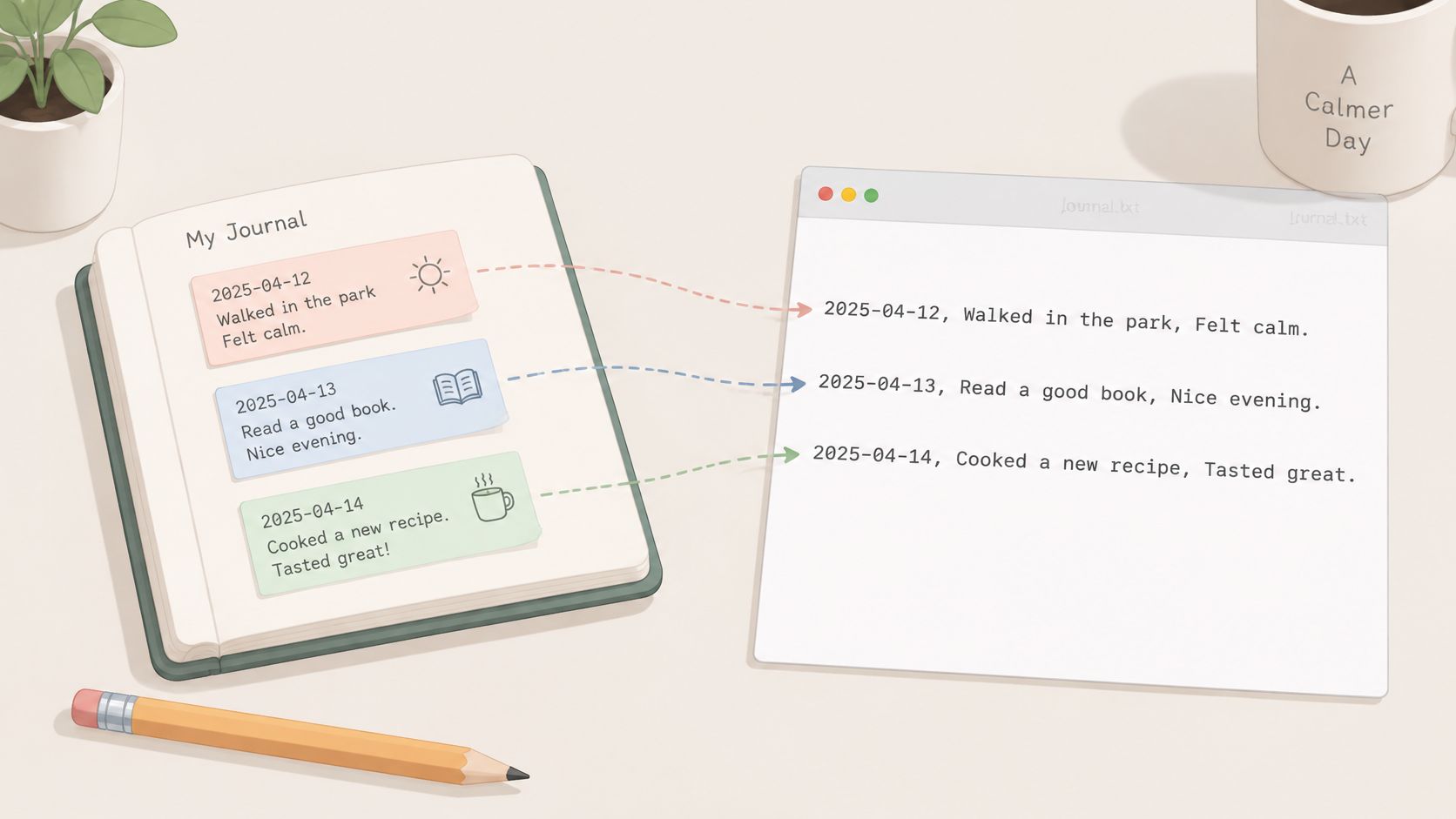
When you ask what is CSV export, you're asking about a copying step, not a special kind of app. The app takes structured records, such as dated journal entries, and writes them into a plain-text file where commas separate the fields. Each record gets its own line, and every line uses the same fields in the same order.
Think of a CSV as a standard shipping crate. Any port can unload it, whether that's Excel, Google Sheets, Python, SPSS, or a database. The crate carries only what was packed inside it. It doesn't bring the warehouse shelving, the forklift routes, or the locks on the doors.
For a microdosing journal, one packed record might hold a date, time, dose, protocol, mood score, and free-text note. Open the file in any text editor and you'll see exactly those values, line by line. That plainness is why the file can outlast the app that produced it, since you don't need special software to inspect it.
What the Crate Doesn't Carry
CSV is built for interoperability rather than rich presentation, and RFC 4180, the common CSV specification, describes a format of records and fields, not a database. It stores no formulas, formatting, relationships, access controls, or encryption. It also doesn't declare data types, so a date, a number, and a word all arrive as text until the receiving program interprets them.
Some systems also swap commas for tabs or semicolons, and encoding or line endings can vary. That's why a reliable export documents its column names, encoding, delimiter, date format, and treatment of empty values.
A CSV export is a portable copy of your records, not a copy of the app.
You can now recognise a CSV file on sight and know its limits. It gives you durable, inspectable values. It doesn't give you the app's structure, security, or explanations unless those are supplied alongside it.
Reading a Real Export Row by Row
Open a journal export in a text editor and the first line does the naming work. It reads Date,Time,Dose,Protocol,Mood (1-10),Notes and names each column once. Every line after that is one record, with commas marking where one field ends and the next begins.
Sample journal export, three records
| Date | Time | Dose | Protocol | Mood (1-10) | Notes |
|---|---|---|---|---|---|
| 2026-03-02 | 08:15 | 100 mg | Fadiman 1-on/2-off | 7 | Calm, focused morning |
| 2026-03-03 | Fadiman 1-on/2-off (off day) | Rest day, no dose | |||
| 2026-03-04 | 08:20 | 100 mg | Fadiman 1-on/2-off | 3 | Tired after poor sleep, no effect yet |
Why Some Notes Wear Quotation Marks
Look at the first note. In the raw file, "Calm, focused morning" sits inside double quotes because the note itself contains a comma. Without those quotes, a program that splits on commas would treat "focused morning" as a new field and shove everything after it one column to the right.
That quoting rule is central to the format. The Library of Congress format description for CSV notes that fields containing a comma, line break, or double quote must be enclosed in double quotes, and an embedded quote is escaped by doubling it. A mood score landing in the Notes column is the visible symptom when an exporter gets this wrong.
Empty Cells Are Information Too
The second record is an off day. Its Time, Dose, and Mood cells are empty, which means nothing was recorded. It doesn't mean the dose was zero or the mood was neutral. The third record shows the opposite case, a real mood score of 3 with a note explaining the poor sleep behind it.
A table stays readable only if that structure holds from row to row, with the same number of fields on every line. Meaning needs help, though. A companion README or data dictionary should define the 1-10 scale, dose units, timezone, and what a blank cell means, so nobody has to guess later. Entries written consistently make this easier, which is one reason structured data entry habits pay off at export time. Next, you'll check these details when you open the file yourself.
Why Exports Matter for Analysis, Backups and Portability
Say you've logged twelve weeks of entries and you want to know whether one protocol suits you better than another. You export the journal, open it in a spreadsheet, and build a pivot table comparing average mood on Fadiman 1-on/2-off days against Stamets 4-on/3-off weeks. Inside the app, that comparison might take minutes of scrolling. In a spreadsheet, it's a few clicks, and you can chart it, filter it, or rerun it next month.
A Copy You Control
A backup is the quieter reason, and it matters just as much. A CSV on your own drive protects you if an app changes direction, an account gets lost, or a service shuts down. Because the file is plain text, you're not betting your history on one company's survival or one proprietary format.
Portability goes one step further. The European Data Protection Board guidance on individuals' rights identifies CSV, XML, and JSON as structured, commonly used, machine-readable formats that let people reuse their personal data with another service, and states that a PDF is not sufficient for that purpose. A screenshot or pretty report shows you your data. A CSV gives you data that another tool can process directly.
Sharing becomes selective, too. You can send a coach only the Date, Dose, Mood, and Notes columns for one month instead of your entire history. You choose the slice, and the rest stays private.
Where CSV Fits and Where It Doesn't
- Flat tables: one row per entry, same fields every time
- Time series: dated records you want to chart or average
- Selected sharing: a few columns for a defined period
CSV doesn't fit everything. Relationships between records, images, charts, and formatting don't travel in a flat text file, so they need documentation or additional files alongside it. If your goal is trend analysis, a safety copy, or moving to a new tool, a CSV export serves it well. If your goal is recreating the whole app experience elsewhere, it won't, and knowing that in advance saves frustration.
How to Export Your Journal as CSV
Exporting from MicroTrack follows four steps, and the logic matters more than the exact button labels, which can vary by device and version.
The visual below maps the routine from setting your range to saving the finished file.
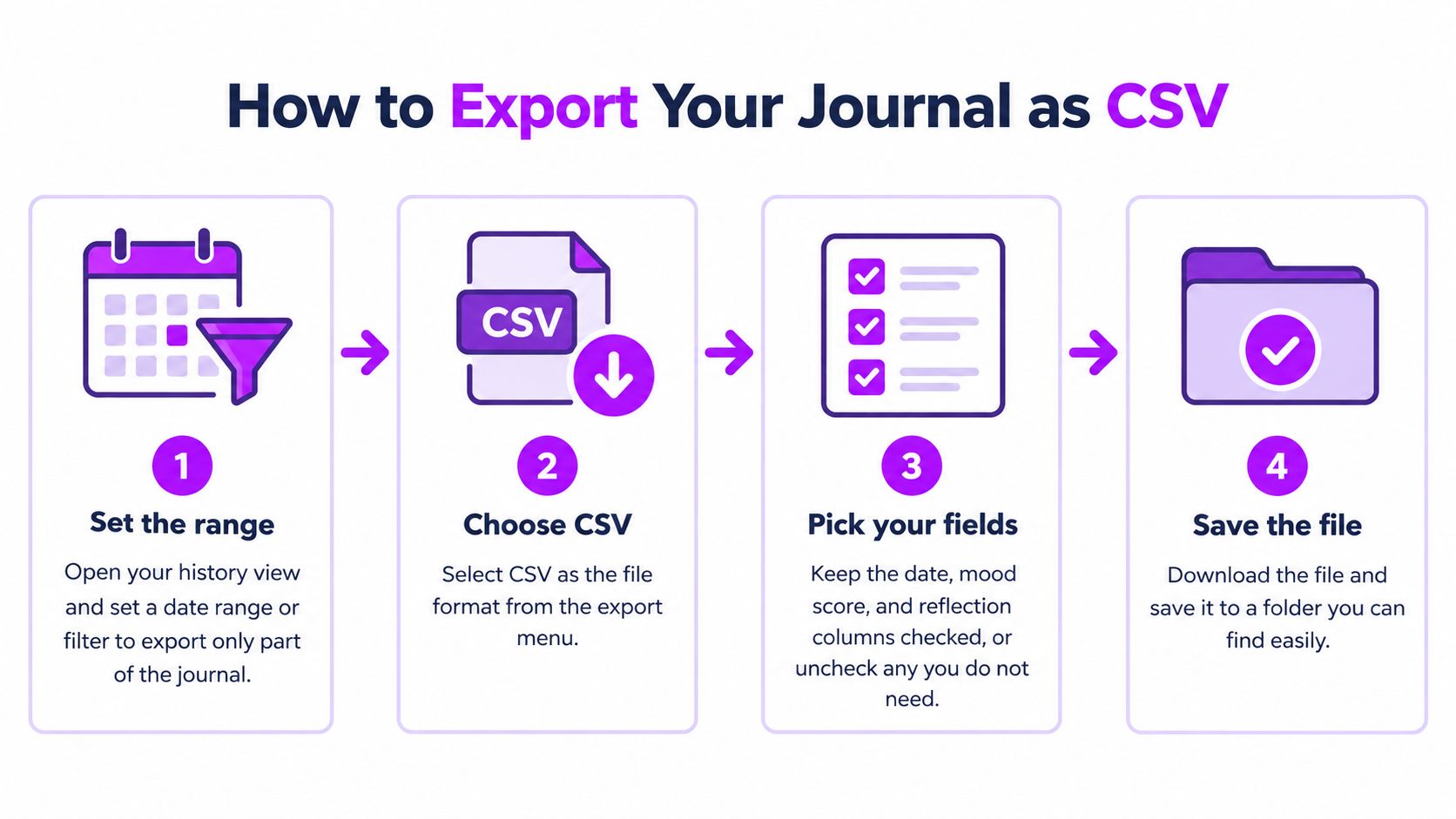
- Set the range first. Open your history view and apply a date range or filter if you need only part of the journal, because a narrower export is easier to check and stays comfortably within spreadsheet limits.
- Choose the CSV option. We let you export all your data as CSV at any time, so you can take the full history whenever you want it, not only on request.
- Save with a dated name. Use something like journal-2026-03.csv so next month's export doesn't silently overwrite this one.
- Leave the original untouched. Make a working copy before you sort, edit, or analyse anything, so you can always return to the file exactly as it was exported.
Before you use the file, glance at its header line. It lists the columns the export contains, which may differ from what you assumed if you filtered fields.
If you prefer watching the process before trying it, this short walkthrough shows an export from start to finish.
That's the whole routine. The careful part comes next, when you open the file without letting a spreadsheet rearrange it without warning.
Open, Import and Verify the File
Double-clicking a CSV is how most corruption happens, because your spreadsheet guesses the settings before you can correct them. Open the spreadsheet first instead, then use its Import or Text to Columns feature so you control each choice.
Set the Import Options Deliberately
- Delimiter: choose comma. A semicolon or tab setting, common in some European locales, dumps every value into a single column.
- Encoding: choose UTF-8 so accented characters and punctuation survive intact.
- Date format: set the date column to YYYY-MM-DD. Locale guessing is how March 4 becomes April 3 without any warning.
If you're moving the file into Google Sheets specifically, our guide to exporting CSV to Google Sheets walks through that import dialog field by field.
Verify Before You Trust It
- Count the rows. Compare the number of rows in your spreadsheet with the number of entries in the app for the same period. A successful download doesn't prove every record loaded.
- Spot-check a tricky note. Find a Notes cell that contains a comma or a line break and confirm it stayed inside one cell, with the mood score still in its own column.
Verification rule: if the row count matches and the messiest note stayed in one cell, the import probably worked. If either check fails, reimport before you analyse anything.
Work in a copy from here on, never in the original. When importing into another tool or a database, reuse the same delimiter, quote, and encoding settings and check that header names match the target fields before loading. Confirm whether MicroTrack accepts CSV import before relying on it for a restore. If it doesn't, treat your dated export as the archive copy and keep it safe.
Where CSV Exports Break and How to Fix Them
Most CSV failures trace back to one trait. The format is interoperable but not self-describing, so the file doesn't declare its delimiter, encoding, or date format, and each program fills those gaps with its own assumptions. A file that opens cleanly in one tool can break in another for no visible reason.
Tools differ by default. The Python csv module documentation describes defaults of a comma delimiter, double-quote character, and CRLF line termination, so a file built with other settings needs matching import choices. Capacity is a separate trap. Microsoft's Excel documentation on importing text and CSV files states Excel handles up to 1,048,576 rows and 16,384 columns, and rows beyond that limit won't load, so a multi-year export can lose records without any warning.
Common opening problems, causes and fixes
| Symptom | Likely cause | Fix |
|---|---|---|
| Values shift into the wrong columns | Unquoted comma or line break inside Notes | Import with a CSV-aware tool and check that Notes is quoted |
| Dates flip day and month | Locale-dependent date parsing | Use YYYY-MM-DD and set the date column type during import |
| Accented or garbled characters | Encoding mismatch, file read as Latin-1 instead of UTF-8 | Reimport with encoding set to UTF-8 |
| Everything lands in one column | Semicolon or tab delimiter instead of comma | Set the delimiter to match the file |
| Rows missing after opening | More than 1,048,576 rows in one sheet | Split the export by date range and keep the same header |
| Empty cells look like zero | Blank treated as 0 by the importer | Check the data dictionary and treat blank as not recorded |
Diagnose in a Fixed Order
Check the delimiter first, then encoding, then dates, then row count. That order works because each step depends on the one before it, and guessing randomly wastes time.
When a file is too large, split it by date range and repeat the same header and column order in every part, then compare the final row count with the app. Watch the subtle case too. A blank cell means not recorded, and an importer that reads it as zero will quietly drag down every average you calculate, so check the data dictionary before analysing.
Protect Exported Files and Set a Backup Routine
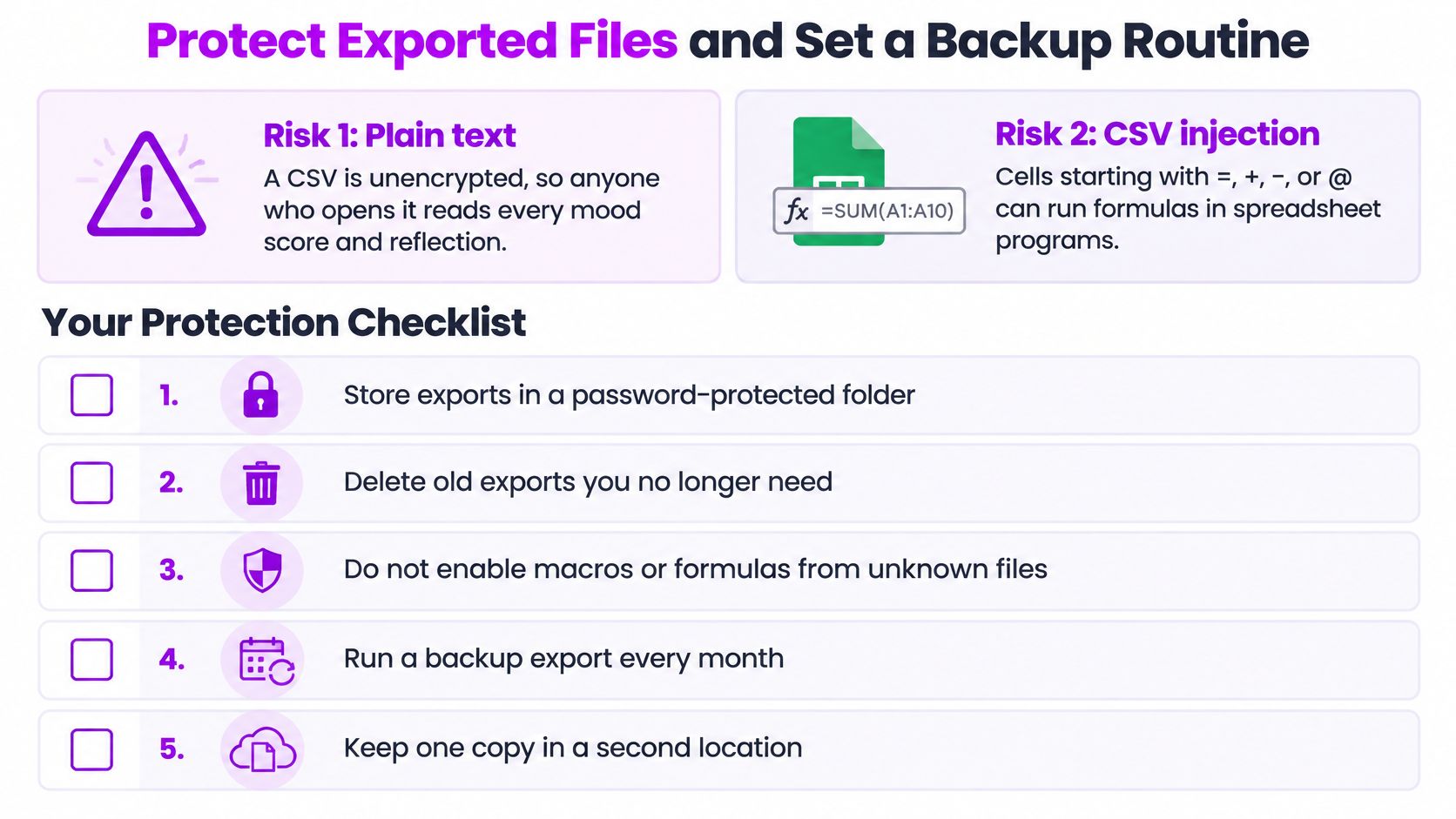
Treat every export as readable by anyone who gets hold of it. A CSV is plain, unencrypted text, so there's no password between a stranger and your mood scores, dose details, and reflections. The convenience that makes the format useful is the same trait that makes it exposed.
There's a second risk that rarely gets discussed. CSV injection happens when a spreadsheet interprets a cell beginning with =, +, -, or @, or certain control characters, as a formula instead of text. The OWASP guide to testing for CSV injection recommends escaping those characters when generating files, because a formula can alter calculations or leak data. A note pasted from an untrusted source can carry that trigger into your own spreadsheet.
The checklist below pairs those two risks with the habits that neutralise them.
Your Protection Checklist
- Encrypt the storage. Keep exports on an encrypted drive or in a password-protected folder, not loose in Downloads.
- Skip unencrypted email. Don't send exports as plain attachments, since copies linger in inboxes you don't control.
- Avoid shared computers. Don't open sensitive files on machines other people use, and delete local copies if you must.
- Inspect unfamiliar files first. Open a CSV from someone else in a text editor before a spreadsheet, and don't enable macros.
- Keep one dated backup per month. A regular snapshot means a lost account costs you weeks, not years.
- Delete what you don't need. Every forgotten copy is another place your reflections can leak from.
These habits fit alongside the broader data privacy best practices worth applying to any personal health data you keep.
The Monthly Routine
Because your journal history is searchable and filterable, the routine takes minutes. Filter the history to the month you need, export it as CSV with a dated filename, verify the row count, and store the copy in encrypted storage. Schedule the first one this month, while the steps are fresh, and let the habit carry itself from there.
Your journal entries deserve to outlive any single app, and MicroTrack lets you export your complete history as CSV whenever you want it for spreadsheets, deeper analysis, or a private archive. Pair that freedom with structured daily logging, trend views across weeks and months, and privacy protections that keep your data yours. Start building a record you fully own at MicroTrack and run your first dated export this month.