Export CSV UTF 8: How to Save Files That Open Correctly
You exported a week of notes, double-clicked the file, and Zoë showed up as Zoë while 東京 collapsed into question marks. The same file looked fine in a text editor an hour earlier. Excel guessed one encoding. Your pipeline assumed another. Neither tool raised an error.
A filename that says UTF-8 is not proof the bytes are right. A sheet that opens cleanly can still drop a leading zero, rewrite a date, or run a reflection as a formula. I would treat each export as a contract with one recipient, write the variant that person needs, and prove the round trip before you archive it.
Table of Contents
- Which UTF-8 CSV Variant You Need
- How to Export a UTF-8 CSV Step by Step
- Saving a UTF-8 CSV from Excel and Text Editors
- Opening, Verifying and Repairing UTF-8 CSV Files
- Testing the Round Trip and Standardising Your Export
Which UTF-8 CSV Variant You Need
A UTF-8 CSV is not one setting. You can write the same rows two ways, and only one of them will survive the next handoff. UTF-8 stores accented letters, non-Latin scripts, and emoji in a single file. The CSV format guide points out that RFC 4180 does not define an encoding, so the bytes do not announce themselves. Unless the file is labelled, or you tell the consumer how to read it, the recipient is guessing.
The byte order mark is a three-byte signature at the very start of the file. Some programs use that signature to recognise UTF-8. It is a compatibility signal for a specific opener, not a repair for a badly built table.
| Variant | Best for | Opens on double-click in Excel | Watch out for |
|---|---|---|---|
| UTF-8 without BOM | APIs, databases, data pipelines, strict parsers | No, use the import flow | Excel may show accents garbled on double-click |
| UTF-8 with BOM | Windows users opening the file directly in Excel | Yes | Some parsers read the BOM as an invisible character in the first column name |
| UTF-8 without BOM, imported through Get Data | Excel users who are willing to import | Not needed, the import sets the encoding | Requires an extra import step every time |
| Windows-1252 legacy export | Old Excel setups only | Sometimes | Breaks non-Latin text and emoji, so avoid it for new exports |
How to pick before you click export
Ask who opens the file, and how they open it, before you export CSV UTF-8. A script, a database load, or an API wants the file without a BOM. A Windows user who double-clicks into desktop Excel wants the file with a BOM. Someone willing to use Excel's import flow can take the no-BOM file if you tell them to set the origin to UTF-8.
Practical rule: If the recipient is unknown, default to UTF-8 without a BOM and send the import instructions with the file.
A BOM can fix the display when Excel opens the file directly. It does not repair broken quoting or a wrong delimiter. Those failures still split notes and shift columns. A legacy Windows-1252 export, still common in older setups, turns names such as Zoë or 東京 into garbled text and cannot hold emoji. Skip it for any new file. If you want a clearer picture of what a tabular download contains, read what a CSV export includes.
How to Export a UTF-8 CSV Step by Step
The dialog records what you asked for. Only the bytes show what was written. Run the checks in order, and don't skip the editor pass because the button already said UTF-8.
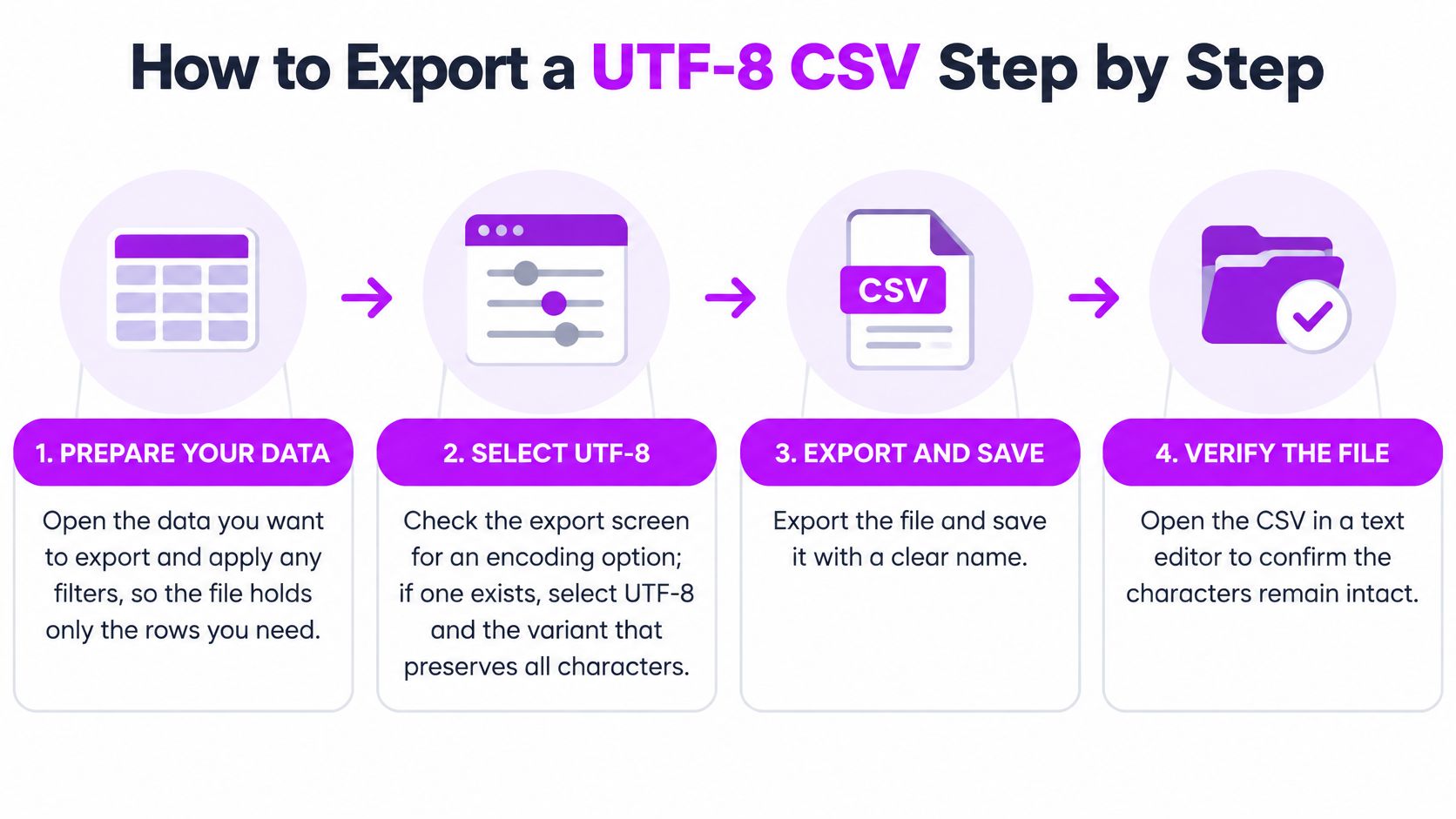
- Open the rows you mean to keep. Apply any filters so the file holds only those rows. A full history is the right choice for a backup. A filtered file is the right choice when you are sharing one week of mood notes and nothing else.
- Look for an encoding control. If the export screen has one, select UTF-8 and the variant you picked for this recipient. If the app offers no encoding setting, assume its default and prove the bytes in step five. The button label is not the file.
- Choose the date range and the columns. Keep header names short and readable, because that first row becomes the field names every importer uses. Drop columns you don't want sitting in someone else's spreadsheet.
- Name the file with the variant and the date.
journal-export-utf8-2026-11-09.csvwill not get mixed up with a BOM copy in the same folder. A genericexport.csvwill. - Open the download in a plain text editor that shows the encoding. Confirm the indicator reads UTF-8, and look at the first line for a hidden character before the first header. This is the step people skip, and it is the one that catches a mismatched default.
- Leave the original untouched. Do any cleanup on a copy. A casual find-and-replace on the only copy is how quoting gets destroyed after a clean export.
When the source is the whole journal
We let you export all of your data as CSV at any time, so you can run this full procedure on a complete history rather than a filtered slice. The same byte check applies if you follow a guide to exporting your data and then hand the file to Sheets or a script. Save the unedited download. If a later edit breaks a quote, you still have a file you can trust.
Saving a UTF-8 CSV from Excel and Text Editors
Excel, Notepad, and VS Code hide the encoding in different menus. The one setting you change is the difference between UTF-8 and a local code page.
- In Excel, choose File, then Save As, then CSV UTF-8 (Comma delimited) from the type list. That option writes a BOM, so use it only for someone who double-clicks the file.
- Avoid plain CSV (Comma delimited). Excel saves that type in the local Windows code page and drops characters such as Zoë, 東京, or emoji. The sheet on your screen still looks fine, which is why the loss is easy to miss.
- In Notepad, choose Save As, set Encoding to UTF-8 for no BOM or UTF-8 with BOM for an Excel double-click, and keep the
.csvextension. Watch the type box, or Notepad will append.txt. - In VS Code, click the encoding indicator in the status bar, choose Save with Encoding, then select UTF-8 or UTF-8 with BOM. Saving without that menu keeps whatever encoding the editor already had open.
- Reopen the file in the same editor and confirm the indicator still shows the value you chose. If it flipped, the save dialog did not stick.
Don't send a BOM file to a strict parser. It may read the signature as an invisible character on the first column name, and an exact header match will fail.
Opening, Verifying and Repairing UTF-8 CSV Files
Double-click first only when you meant to. A BOM file usually opens correctly in desktop Excel, so check that accented names and non-Latin text look like the source before you edit anything.
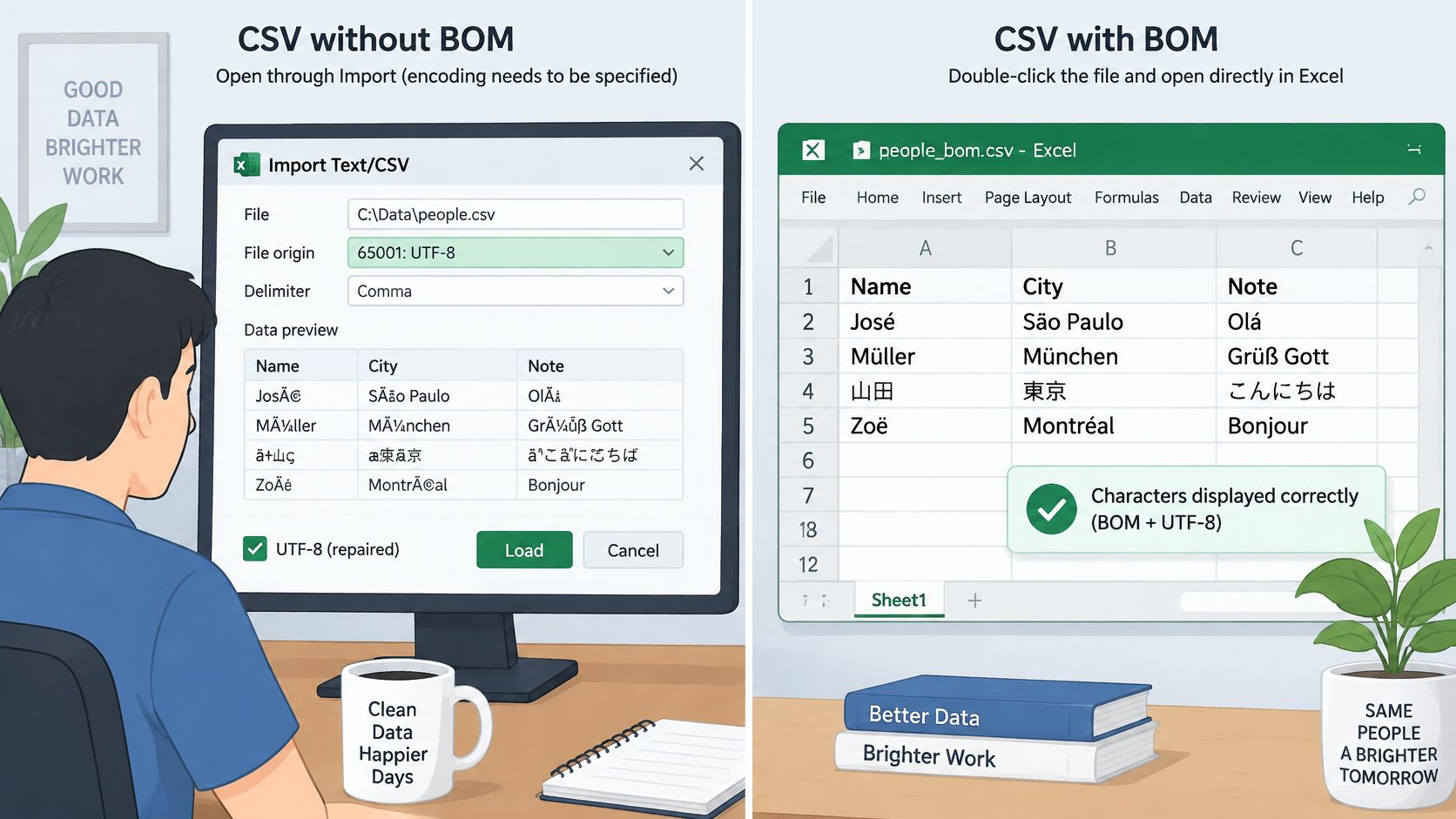
Microsoft's Excel support note says a UTF-8 CSV can be opened normally when it is saved with a BOM. Without a BOM, use Data > Get Data > From File > From Text/CSV, or Get Data From Text to open the Text Import Wizard. The BOM is a signature, not an indication of byte order, because UTF-8 has no endian distinction.
Import paths that set the encoding
In the Excel preview, set File Origin to UTF-8, then load. Don't accept the guessed origin just because the first rows look like English. In Google Sheets, use File, Import, Upload, choose the comma separator, and read the preview before you replace the current sheet. The Sheets path is spelled out in how to bring a CSV into Google Sheets.
In both tools, set identifier columns such as 007 and any date column to Text during import. Leave them on General and the sheet will eat the zeros and reinterpret the date.
One symptom, one fix
Work in this order: encoding first, then quoting, then formatting. Fixing a formula problem on a file that is still in the wrong encoding just hides the next failure.
| Symptom | Likely cause | Fix |
|---|---|---|
| Accents show as two odd characters | File read as Windows-1252 | Reimport through Get Data with UTF-8 selected |
| First column name has a stray prefix | BOM read as text by a strict parser | Export a no-BOM version for that consumer |
| Question marks or empty boxes in CJK or emoji | Legacy encoding or a font without those glyphs | Confirm UTF-8 encoding, then check the font |
| Rows split or columns shift | Unquoted commas or line breaks inside notes | Re-export with quoting intact and check the delimiter |
| Leading zeros gone, dates changed | Automatic formatting during import | Import those columns as Text |
| Extra blank rows between records | Line ending translation | Write with newline set to an empty string, or set the correct line ending on import |
| Notes run as formulas | Field starts with =, +, - or @ | Prefix the field with an apostrophe or turn off formula parsing |
The clip below walks through the import when a double-click has already mangled the text. Watch the origin setting, not just the preview grid.
Testing the Round Trip and Standardising Your Export
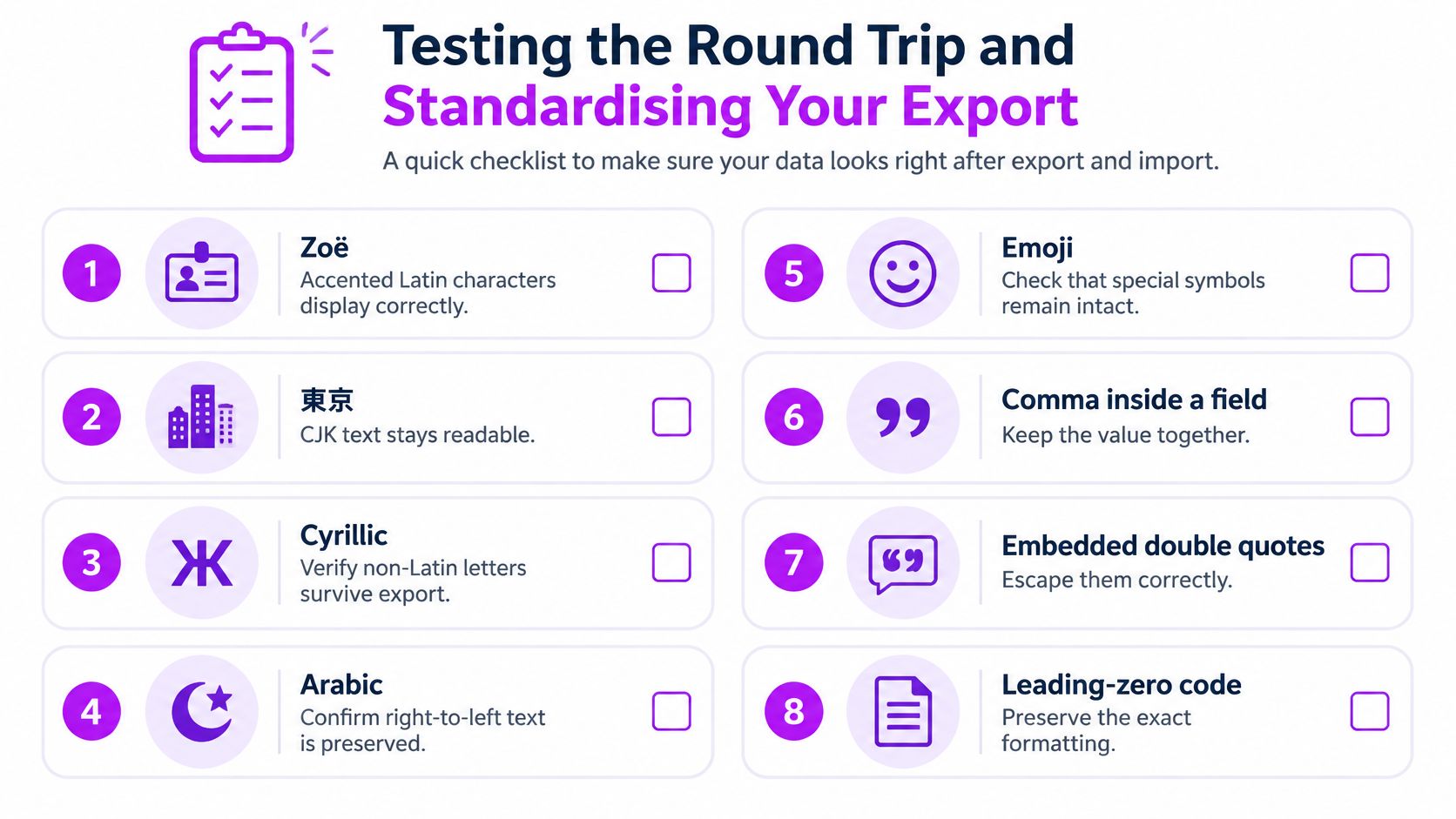
Opening without an error message is not a pass. Build an eight-row fixture and run it through the same route you use for real data. Use made-up entries. Health-related notes do not belong in a debugging file.
Pack the rows with accented Latin such as Zoë, CJK such as 東京, a Cyrillic word, an Arabic word, an emoji, a comma inside a field, embedded double quotes, a multiline reflection, a leading-zero code such as 007, and an ISO date such as 2026-11-09. Eight rows are enough if several rows carry more than one of those stresses.
What an independent parser must prove
The Python csv documentation is the bar I use for a strict file. Encode the output as UTF-8, emit one consistent header, quote every field that contains a comma, a quotation mark, or a line break, and use CRLF when the consumer expects RFC 4180. Each record needs the same number of fields as the header, and an embedded quotation mark must be doubled. Open the destination with encoding="utf-8" and newline="", then read through the csv module instead of splitting lines yourself. The empty newline value stops the platform from inserting blank rows or corrupting a quoted line break.
Reopen the file with a second parser, not the program that wrote it. Check three things.
- Field count: every record matches the header.
- Row count: the count after export matches the count you sent.
- Field values: Zoë, 東京, Cyrillic, Arabic, the emoji, the comma, the quotes, and the multiline note all match the fixture.
Then open that same file in Excel and in Google Sheets. Confirm 007 kept its zeros, 2026-11-09 stayed as text, and no note ran as a formula.
A file can look perfect on screen while it silently converts an identifier, a date, or a formula.
CSV has no single universal specification, so delimiter, quoting, line endings, and encoding have to be tested against the actual destination. A pass in Python does not excuse a fail in Sheets.
Two files when you have two audiences
Keep UTF-8 without a BOM for APIs, databases, and pipelines, and send the import note with it. Keep UTF-8 with a BOM for people who double-click into desktop Excel. When one export serves both groups, save two named files, such as journal-export-utf8-2026-11-09.csv for the pipeline and a clearly marked BOM twin beside it. Write down the export route, the variant, the date format, and the import setting next to the files. If any field differs from the fixture, fix encoding, then quoting, then formatting, and run the eight rows again.
MicroTrack is a microdosing journal where you can export your full history as CSV whenever you want a copy outside the app. Pair that download with the variant your next tool needs, and check a fixture before you treat the file as a record. Visit MicroTrack to start a private log and keep an export you can open without guessing.